Warm and healthy
Bring the engine to normal temperature and resolve warning lights, leaks or known mechanical faults first.

A useful log follows Justin's requested channels and test conditions, with a clear filename and no unnecessary signals reducing the sample rate.
Bring the engine to normal temperature and resolve warning lights, leaks or known mechanical faults first.
Use Justin's channel list for the current revision instead of selecting every available parameter.
Confirm the requested condition, gear and RPM window, then use a dyno or a legal controlled environment.
From the MazdaEdit main toolbar, open the Mazda 2nd gen CAN Logger. The correct logger can vary with the platform, so use the logger Justin specifies for the confirmed ECU.

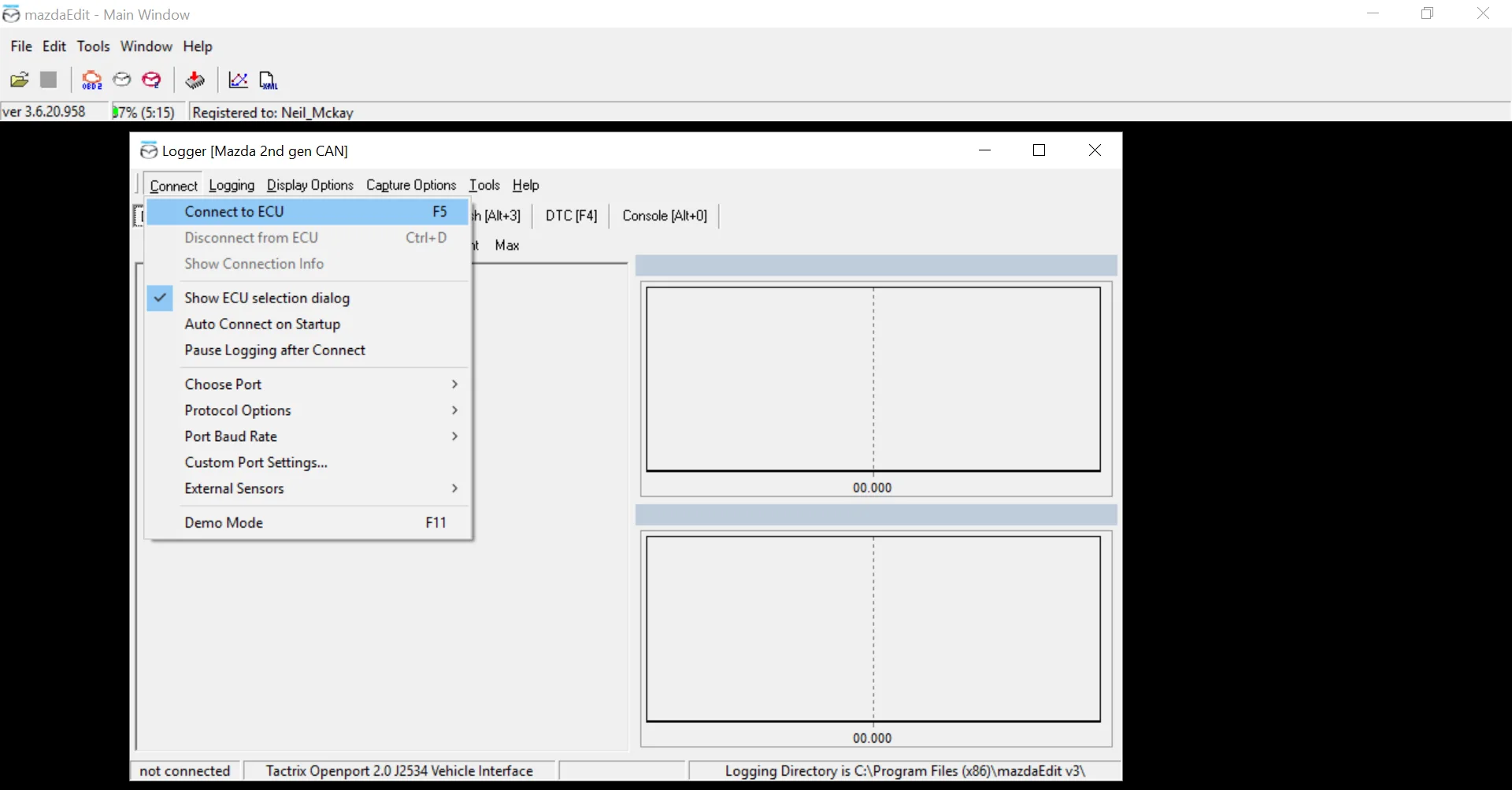
With the wired interface connected and the engine running, open Connect and select Connect to ECU. Confirm that MazdaEdit identifies the interface and establishes communication before setting up the log.
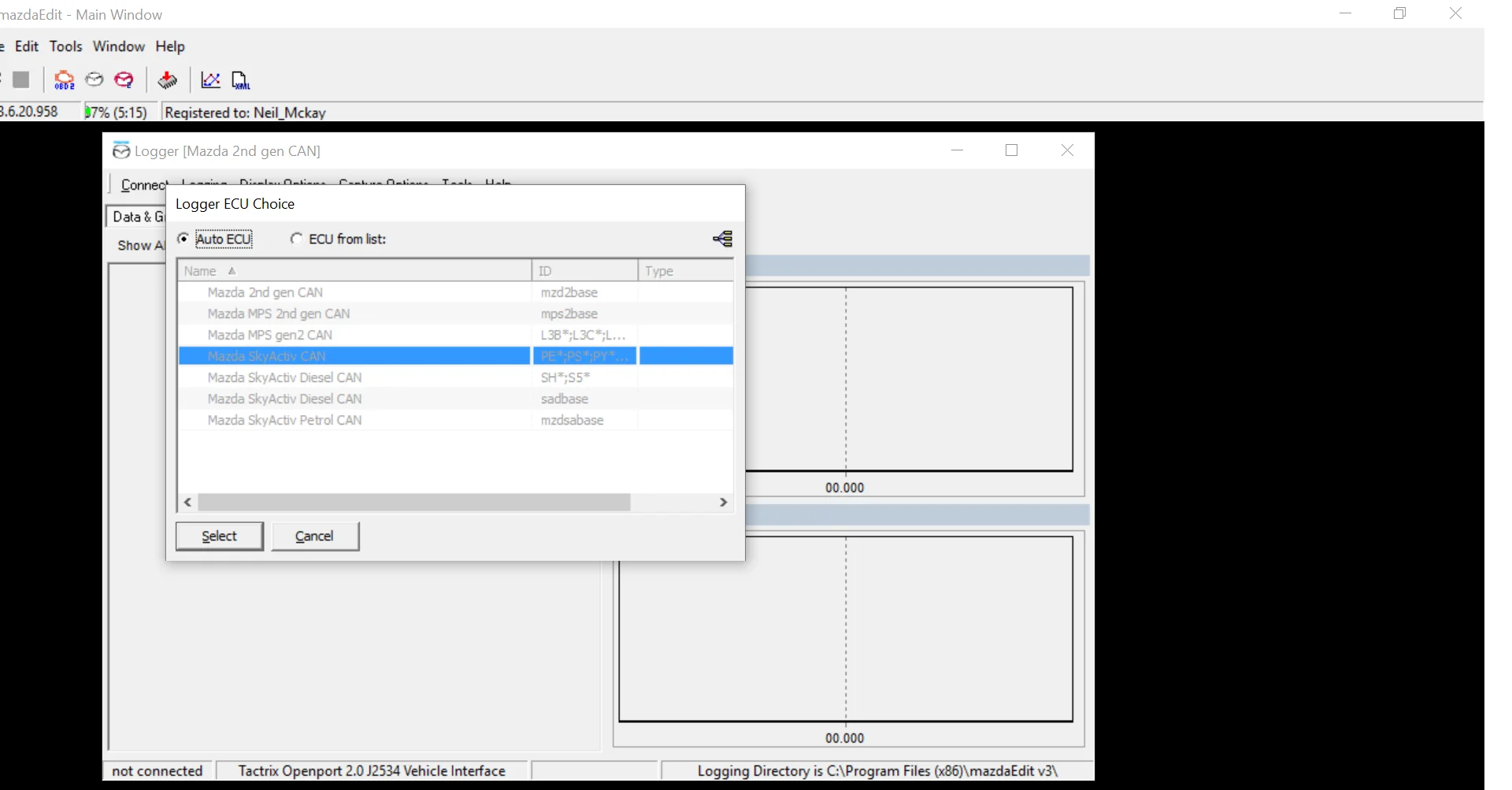
Use Auto ECU when instructed and select the detected strategy. If the result does not match the vehicle or communication fails, stop and confirm the logger and ECU choice with Justin.
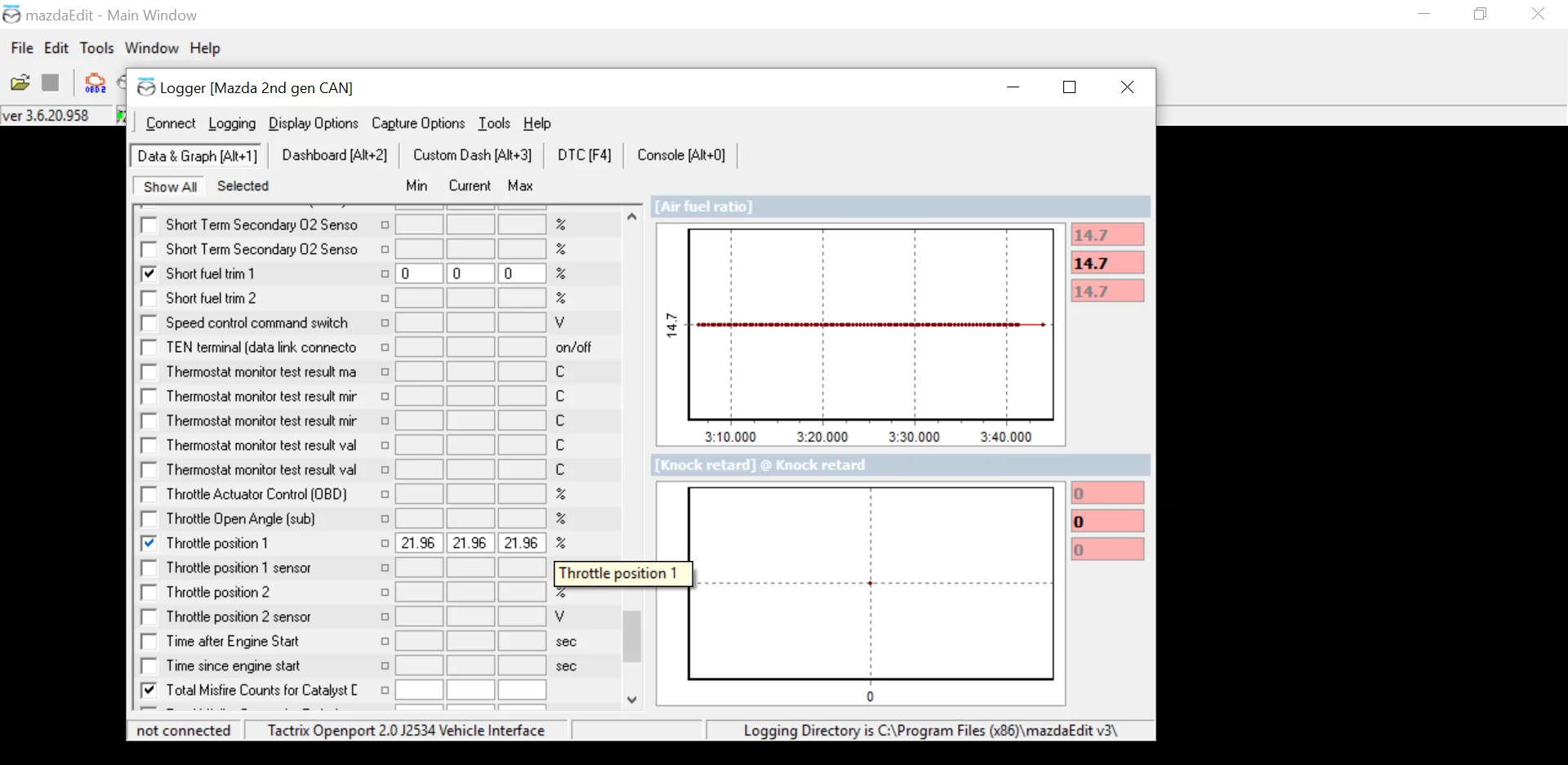
Open the Data and Graph view, choose Show All when a requested channel is hidden, then tick the exact parameters supplied by Justin. Accelerator Angle and Throttle Position are commonly useful, but the final list depends on the vehicle and revision.
Choose Logging, then Log Data to File immediately before the requested test. Repeat the same command to stop once the required window is complete. Do not extend a pull beyond Justin's instructions.
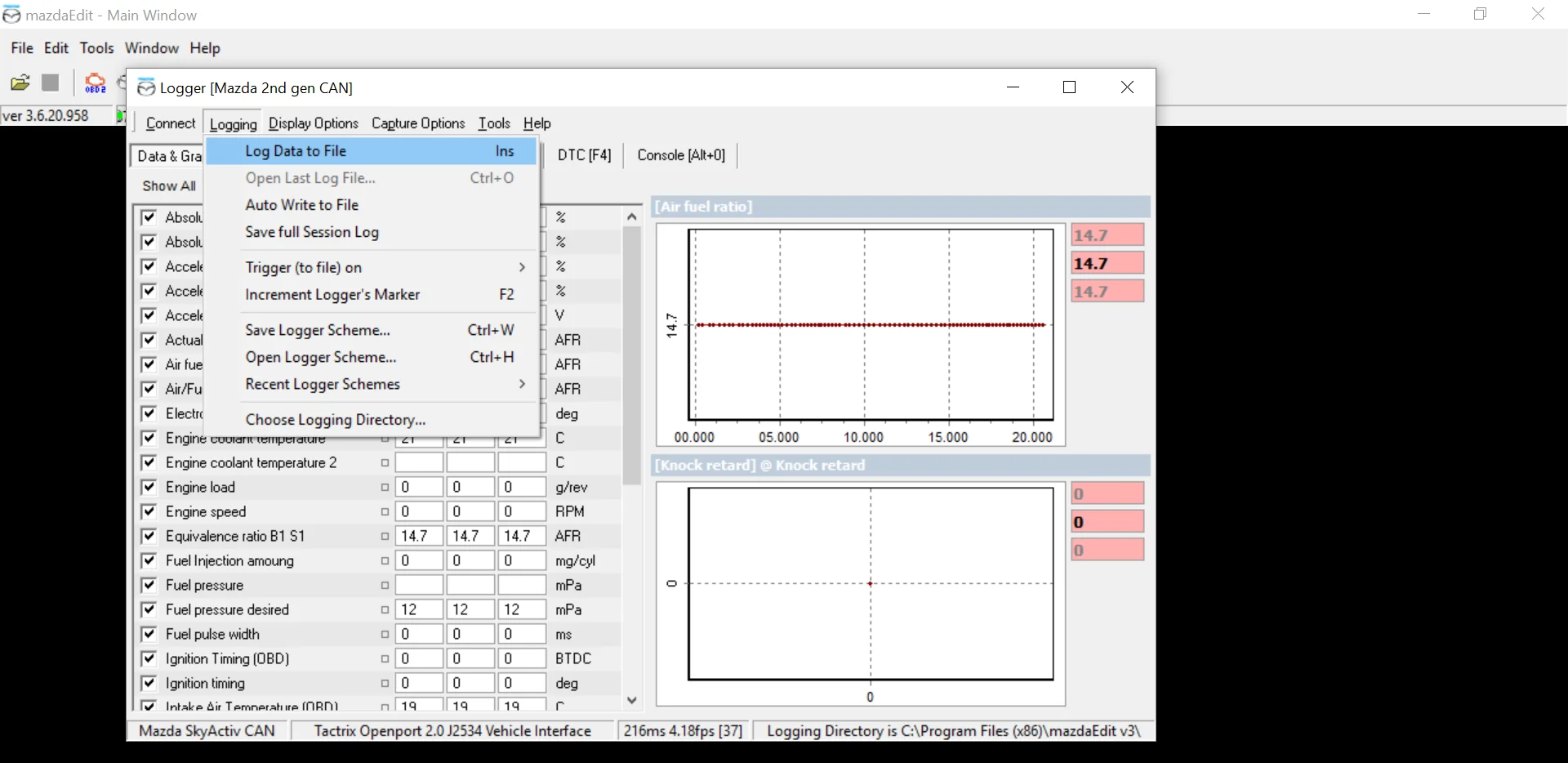
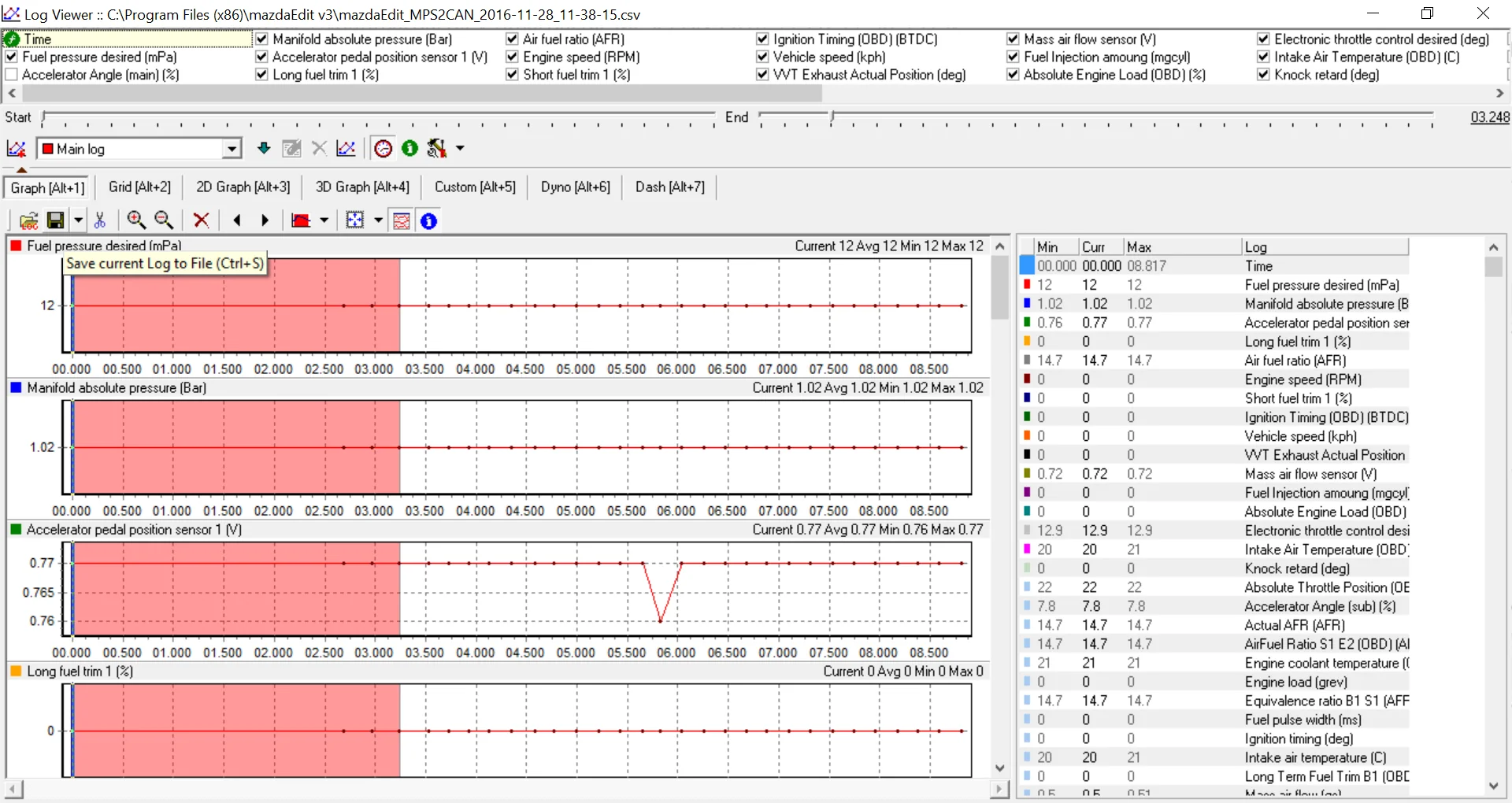
Use Logging, then Open Last Log File to confirm that the session was saved and contains the expected time window. A short empty file usually means recording was not active during the test.
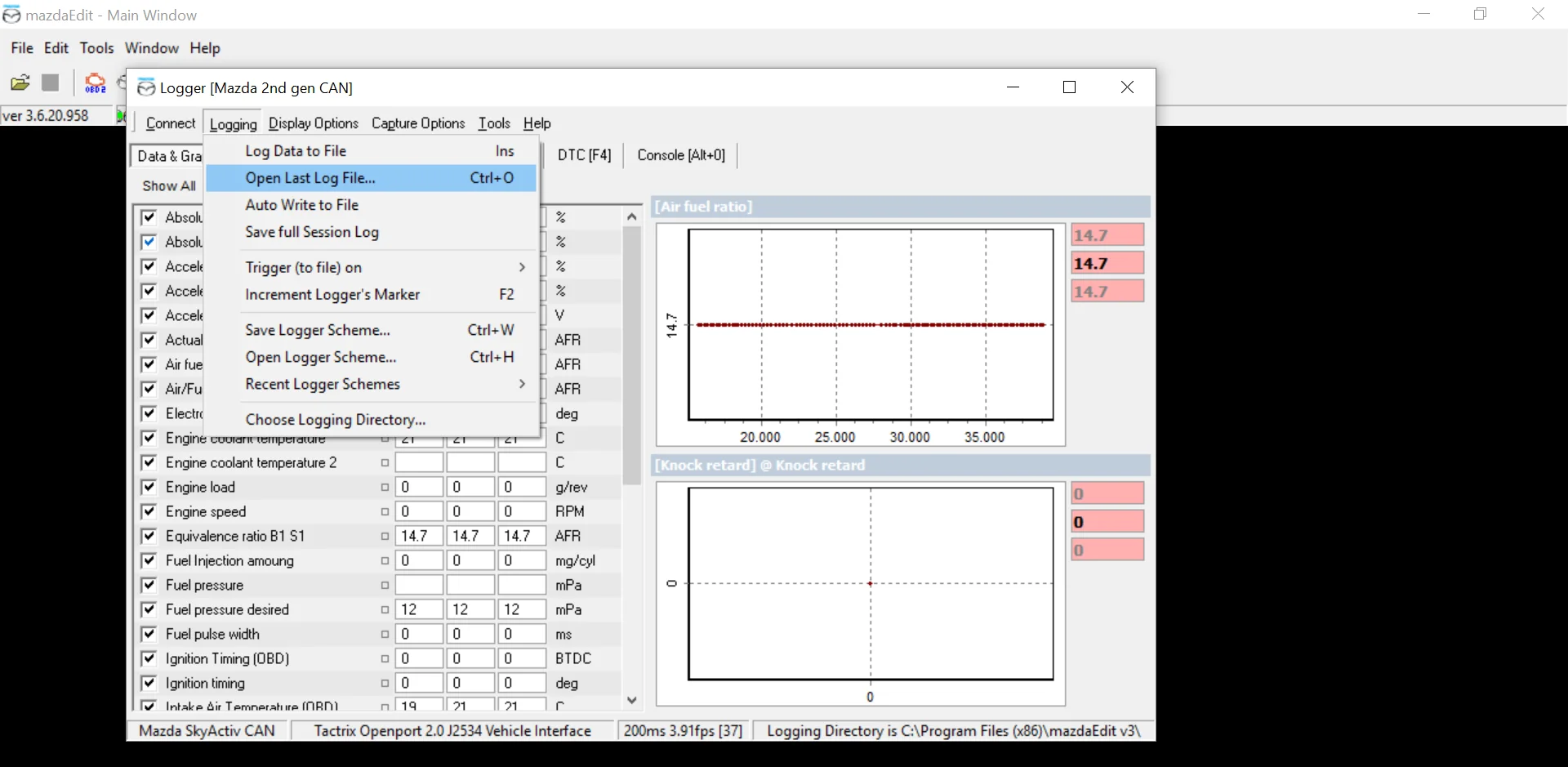
Check that the graphs are continuous and the requested channels contain data. Save the CSV with the vehicle, fuel, map revision, date and test condition, then send the file to Justin without editing its values.
Never attempt a tuner-requested pull in traffic or where speed, visibility or road conditions make it unsafe or illegal. Use a suitable dyno or controlled environment and have another person operate the laptop when necessary.
Workflow adapted for Mazda Sauce Tuning from the supplied MazdaEdit interface captures and the BBR GTI MazdaEdit reference · Reviewed August 2026.